

Combination price groups
The "Combination price groups" feature enables the ability for front-end to retrieve multiple Combination price records. Once a group is set up, the system can retrieve all related Combination prices at once using group as an identifier.
Additionally, the Combination price groups simplify the Combination price setup by reducing the number of records and shortening the combination, making it easier to manage and maintain.
Permissions
To access/manage the Product Combination Groups feature, users are required to have “CombinationPriceGroups” role. The feature will appear under “Products” menu. 
To understand the function of Combination price groups clearly, take this table configuration as an example:
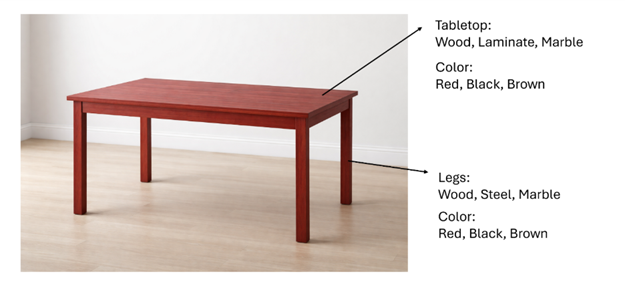
In order to set up the pricing for all possible selection of tabletop and legs, there must be 27 Combination prices. In this case, the colors for tabletop and legs are under the same master editions.
- Color-Legs-Tabletop:Red-Wood-Wood:955
- Color-Legs-Tabletop:Red-Steel-Wood:955
- Color-Legs-Tabletop:Red-Marble-Wood:955
- Color-Legs-Tabletop:Red-Wood-Laminate:955
- Color-Legs-Tabletop:Red-Steel-Laminate:955
- Color-Legs-Tabletop:Red-Marble-Laminate:955
- Color-Legs-Tabletop:Red-Wood-Marble:955
- Color-Legs-Tabletop:Red-Steel-Marble:955
- Color-Legs-Tabletop:Red-Marble-Marble:955
- Color-Legs-Tabletop:Black-Wood-Wood:955
- Color-Legs-Tabletop:Black-Steel-Wood:955
- Color-Legs-Tabletop:Black-Marble-Wood:955
- Color-Legs-Tabletop:Black-Wood-Laminate:955
- Color-Legs-Tabletop:Black-Steel-Laminate:955
- Color-Legs-Tabletop:Black-Marble-Laminate:955
- Color-Legs-Tabletop:Black-Wood-Marble:955
- Color-Legs-Tabletop:Black-Steel-Marble:955
- Color-Legs-Tabletop:Black-Marble-Marble:955
- Color-Legs-Tabletop:Brown-Wood-Wood:955
- Color-Legs-Tabletop:Brown-Steel-Wood:955
- Color-Legs-Tabletop:Brown-Marble-Wood:955
- Color-Legs-Tabletop:Brown-Wood-Laminate:955
- Color-Legs-Tabletop:Brown-Steel-Laminate:955
- Color-Legs-Tabletop:Brown-Marble-Laminate:955
- Color-Legs-Tabletop:Brown-Wood-Marble:955
- Color-Legs-Tabletop:Brown-Steel-Marble:955
- Color-Legs-Tabletop:Brown-Marble-Marble:955
With the Combination price groups, this is the possible Combination prices setup. In this case, the colors for tabletop and legs are under the same master editions.
Combination price groups:
- Create and assign the group “Tabletop” to Master editions of all tabletop materials and all colors.
- Create and assign the group “Legs” to Master editions of all leg materials and all colors.
With the above group setup, the number of Combination prices is reduced to 18 records and the combination key and value is shorter.
Combination prices:
Group “Tabletop”
- Color-Tabletop:Red-Wood:555
- Color-Tabletop:Red-Laminate:555
- Color-Tabletop:Red-Marble:555
- Color-Tabletop:Black-Wood:555
- Color-Tabletop:Black-Laminate:555
- Color-Tabletop:Black-Marble:555
- Color-Tabletop:Brown-Wood:555
- Color-Tabletop:Brown-Laminate:555
- Color-Tabletop:Brown-Marble:555
Group “Legs”
- Color-Legs:Red-Wood:400
- Color-Leg:Red-Steel:400
- Color-Leg:Red-Marble:400
- Color-Legs:Black-Wood:400
- Color-Leg:Black-Steel:400
- Color-Leg:Black-Marble:400
- Color-Legs:Brown-Wood:400
- Color-Leg:Brown-Steel:400
- Color-Leg:Brown-Marble:400
Prefix
Prefix setting in Combination Price Groups is specifically for shops where the same combination key and value can carry different prices depending on the catalog or product it belongs to. Prefix allows you to define different combination price structures within the same product, making your pricing setup more dynamic, cleaner, and easier to maintain with significantly fewer duplicate records.
When setting up or editing a combination price group, you'll now see a Prefix option with 3 choices:
- None — for combinations that don't use an identifier at the beginning. Best for straightforward setups.
- CatalogProductId — for combinations that begin with the product's Catalog ID. Use this if your pricing can be varied based on catalog.
- ExternalProductId — for combinations that begin with the product's External ID. Use this if your pricing is varied based on products driven by external system or ERP.
Note: All existing combination price groups have been assigned Legacy prefix, meaning everything continues to work exactly as before — no action needed on your end. You only need to choose a prefix option when creating a new group or intentionally updating an existing one.
To understand the function of Prefix setting clearly, take the same table configuration as an example:
Table A100 uses the same combination price Key and Value but its tabletop has additional cost that requires extra combination prices. Therefore, to set up the pricing for all possible selection of tabletop and legs, there must be 36 combination prices and 4 combination price groups. In this case, the colors for tabletop and legs are under the same master editions.
Combination prices:
Group “Tabletop”
- Color-Tabletop:Red-Wood:555
- Color-Tabletop:Red-Laminate:555
- Color-Tabletop:Red-Marble:555
- Color-Tabletop:Black-Wood:555
- Color-Tabletop:Black-Laminate:555
- Color-Tabletop:Black-Marble:555
- Color-Tabletop:Brown-Wood:555
- Color-Tabletop:Brown-Laminate:555
- Color-Tabletop:Brown-Marble:555
Group “Legs”
- Color-Legs:Red-Wood:400
- Color-Leg:Red-Steel:400
- Color-Leg:Red-Marble:400
- Color-Legs:Black-Wood:400
- Color-Leg:Black-Steel:400
- Color-Leg:Black-Marble:400
- Color-Legs:Brown-Wood:400
- Color-Leg:Brown-Steel:400
- Color-Leg:Brown-Marble:400
Group “Tabletop specific"
- A100:Color-Tabletop:Red-Wood:666
- A100:Color-Tabletop:Red-Laminate:666
- A100:Color-Tabletop:Red-Marble:666
- A100:Color-Tabletop:Black-Wood:666
- A100:Color-Tabletop:Black-Laminate:666
- A100:Color-Tabletop:Black-Marble:666
- A100:Color-Tabletop:Brown-Wood:666
- A100:Color-Tabletop:Brown-Laminate:666
- A100:Color-Tabletop:Brown-Marble:666
Group “Legs specific”
- A100:Color-Legs:Red-Wood:400
- A100:Color-Leg:Red-Steel:400
- A100:Color-Leg:Red-Marble:400
- A100:Color-Legs:Black-Wood:400
- A100:Color-Leg:Black-Steel:400
- A100:Color-Leg:Black-Marble:400
- A100:Color-Legs:Brown-Wood:400
- A100:Color-Leg:Brown-Steel:400
- A100:Color-Leg:Brown-Marble:400
In this example case, you may see that the combination prices of “Legs specific” group shares the same combination price Key, Value and Price with “Legs” Group. However, following this combination price and combination price group set-up, you can reduce redundant data from 36 combination prices and 4 combination price groups to 27 combination prices and 3 combination price groups and you can use different combination price structures for one product.
Combination prices:
Group “Tabletop” and assign Prefix "None"
- Color-Tabletop:Red-Wood:555
- Color-Tabletop:Red-Laminate:555
- Color-Tabletop:Red-Marble:555
- Color-Tabletop:Black-Wood:555
- Color-Tabletop:Black-Laminate:555
- Color-Tabletop:Black-Marble:555
- Color-Tabletop:Brown-Wood:555
- Color-Tabletop:Brown-Laminate:555
- Color-Tabletop:Brown-Marble:555
Group “Legs” and assign Prefix "None"
- Color-Legs:Red-Wood:400
- Color-Leg:Red-Steel:400
- Color-Leg:Red-Marble:400
- Color-Legs:Black-Wood:400
- Color-Leg:Black-Steel:400
- Color-Leg:Black-Marble:400
- Color-Legs:Brown-Wood:400
- Color-Leg:Brown-Steel:400
- Color-Leg:Brown-Marble:400
Group “Tabletop Specific" and assign Prefix "ExternalProductId"
- A100:Color-Tabletop:Red-Wood:666
- A100:Color-Tabletop:Red-Laminate:666
- A100:Color-Tabletop:Red-Marble:666
- A100:Color-Tabletop:Black-Wood:666
- A100:Color-Tabletop:Black-Laminate:666
- A100:Color-Tabletop:Black-Marble:666
- A100:Color-Tabletop:Brown-Wood:666
- A100:Color-Tabletop:Brown-Laminate:666
- A100:Color-Tabletop:Brown-Marble:666
To apply the Prefix setting, please follow these migration steps:
For shops using ExternalProductId:
- Copy ExternalProductId from Product Metadata to Product ExternalProductId (only for products having ExternalProductId)
- Update Combination Price Groups Prefix to "None" or "ExternalProductId"
For shops using CatalogProductId:
- Upload all CombinationPrices with new format — the key starting with Catalog Id:, for example, 1849:key:value,price
- Update Combination Price Groups Prefix to "None" or "CatalogProductId"
Sub-group split key
Creating Combination Price groups to support every product component with all possible variety for complicated configurable products can require lots of work from admin users to set up and assign the groups. This function will reduce user’s manual work in setting up groups.
Users can enter the Combination Key in “Sub-group split key” setting to tell system to automatically split that key into separate pricing calls if that key appears multi-times within the same Combination price group and each has different Combination Values.
Use this pair of table and chair as example
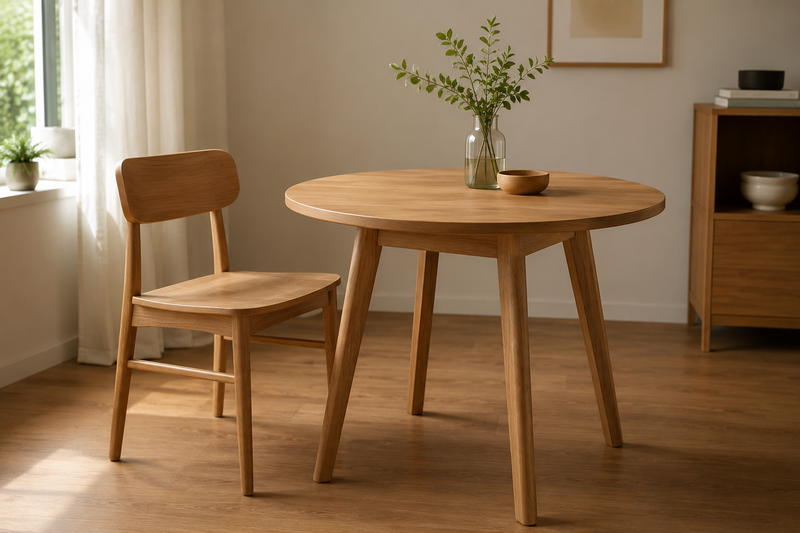
- Original Combination Price in a group: Element-Material-Element-Material:Chair-Oak-Table-Oak
- “Sub-group split key” setting: Element
System splits the Combination Price into following subgroups since it finds a key: Element multi-times within the same Combination price group and each has different Combination Values.
1. Subgroup1: Element-Material:Chair-Oak
2. Subgroup 2: Element-Material:Table-Oak