
Login

Shop user family

Customers can now form a family group in oneCORE through the Shop User Family feature, linking accounts of members who belong to the same group. Customers can share relevant account content on Account Connect with the people in the same family, while tenants can map the full customer journey across family members.

Family management is available both to admins and to customers themselves directly from their Account Connect page. More details are provided in this article. 


bg-big

Roles within a family

Every family always has exactly one owner. The shop user who forms a family is automatically assigned as its owner, and ownership can be reassigned to another member at any time — by an admin or by the owner themselves.

Both the family owner and members can leave the family at any time, with no restrictions or dependencies.
bg-big

Customers managing their own family

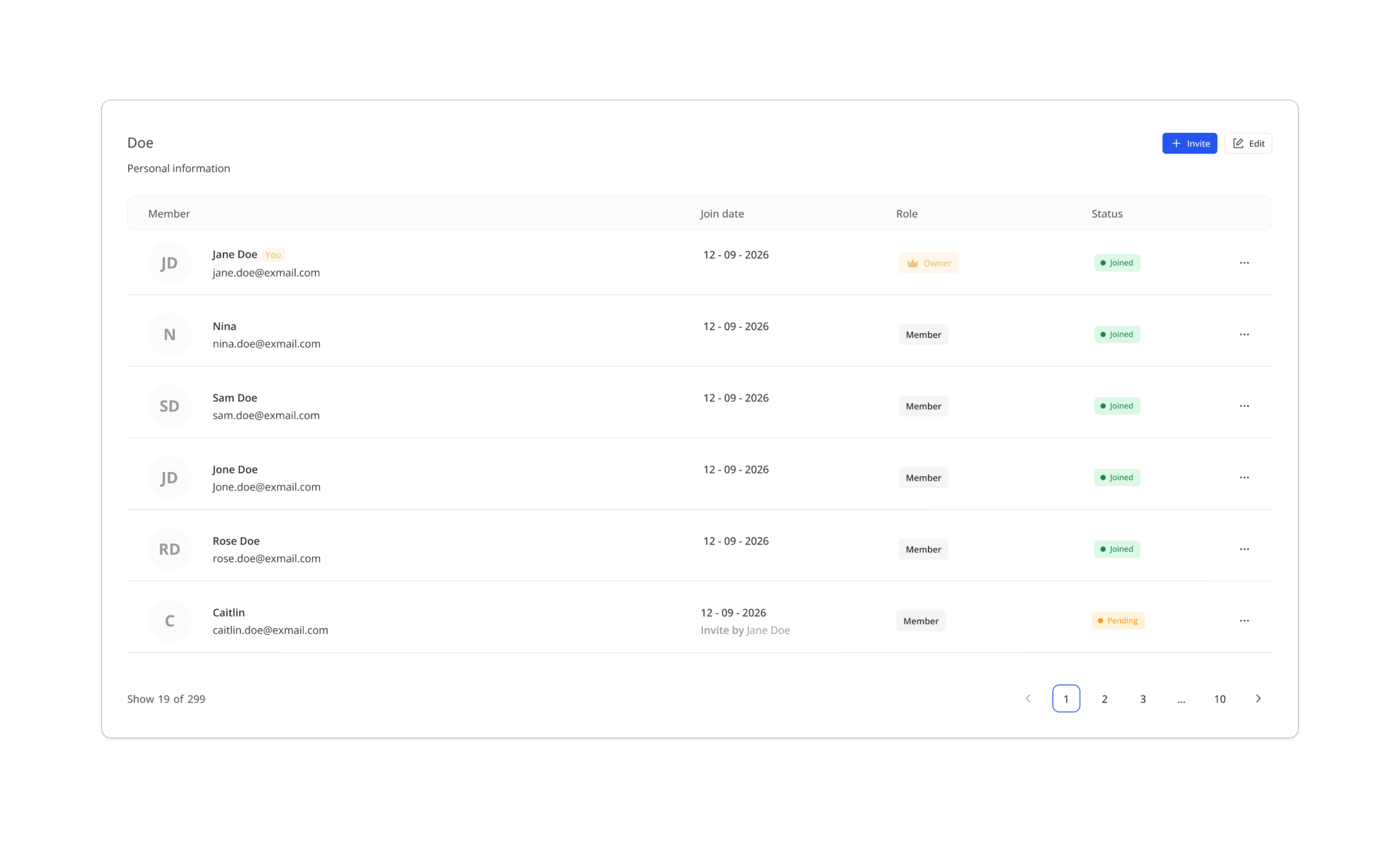
Customers manage their family directly from the MyFamily component on their Account Connect page. To enable this for your shop, add the MyFamily component to an Account Connect page.

Inviting someone to join

- A customer invites someone by entering their email address.
- The invited email address appears on the household member list with a Pending status.
- The inviter can cancel a pending invitation at any time by removing it.
- The invitation must be accepted within 30 days. If it isn't, its status changes to Expired.
- If an invitee's attempt to join fails partway through, they can re-click the invitation link and try again, as long as it hasn't expired.


Accepting an invitation

- If the invitee doesn't have an account or isn't logged in, clicking the invitation link takes them to /account/login to sign up or sign in first.
- Once signed in or signed up, the invitee lands on /account at the MyFamily component and joins the family, gaining access to the family's shared content and family information.
- If the invitation has expired, or was cancelled before the invitee joined, they land on an error page instead.


Leaving a family

Both the family owner and any member can leave their family at any time, with no dependencies or restrictions.


When a family is deleted

- If the last remaining active (joined) member leaves a family, the family is deleted from the system.
- A family with only pending or expired invitations remaining (no joined members) is not deleted automatically.

bg-big

Invitation email

Invitations are sent using a new notification template type, Family Invites, configurable like any other notification template. Available short codes:

- Shop user name — the name of the person sending the invite
- Family name
- Link — the invitation link the invitee clicks to join

bg-big

Admin management

Permissions

To access and manage the Shop user family feature, users are required ShopUserFamily permission. Once the permission is granted, the feature will be available under Shop user menu.


Admin management

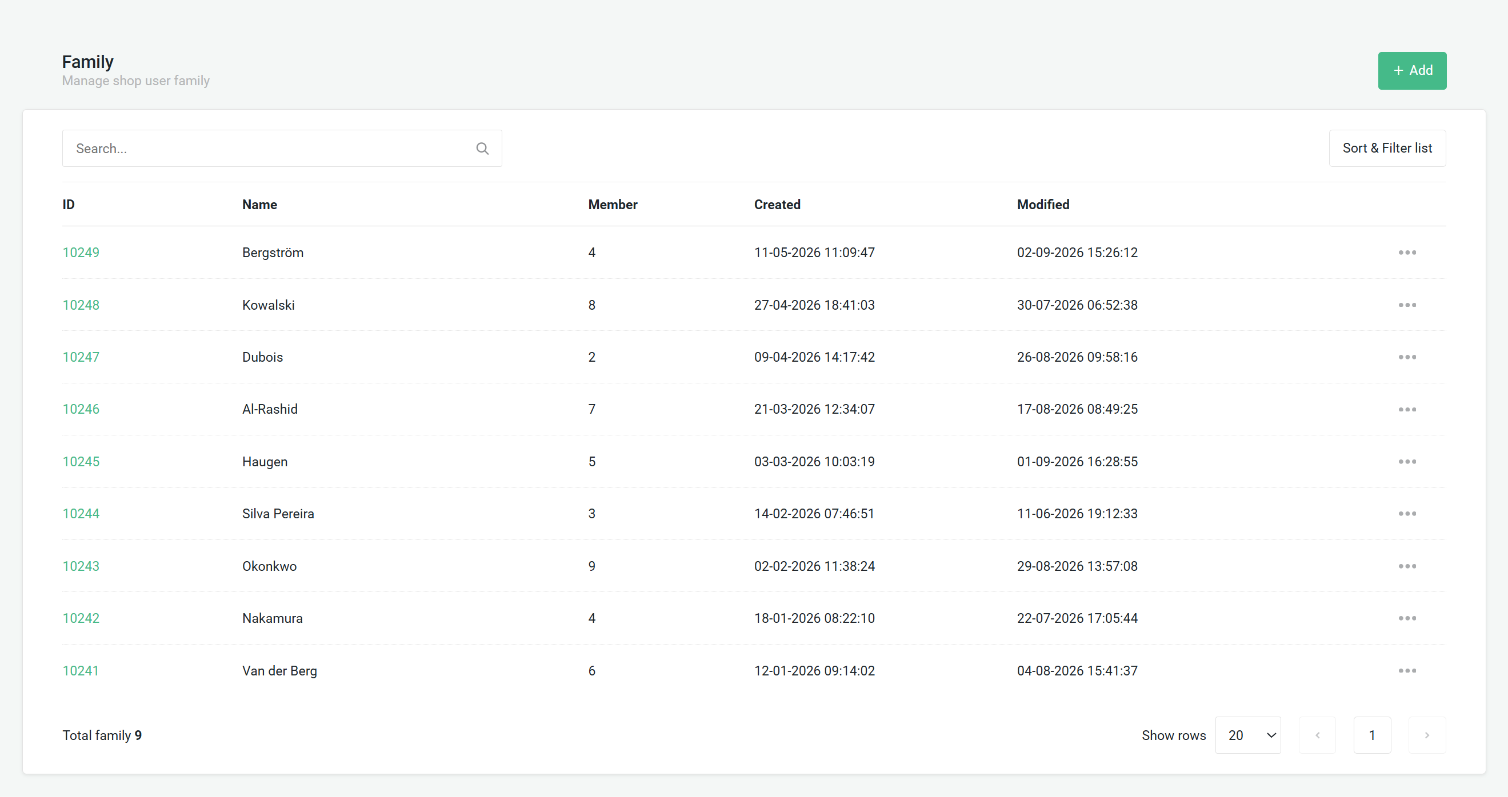
Family list


From here, admins can:

- Add a new family — a name is required.

- Edit a family's name.


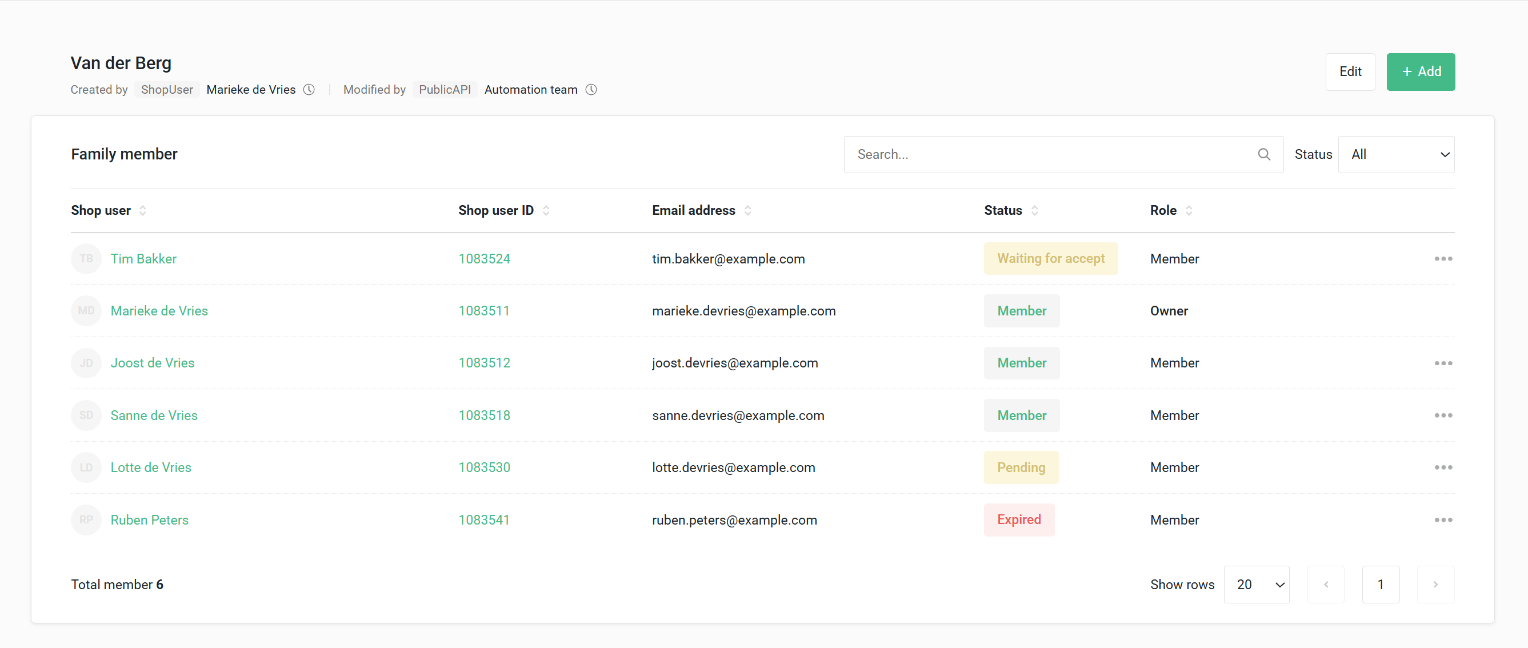
Family details


From the family detail page, admins can:

- Search members by name or email.

- Open a member's shop user detail page.

- Add a shop user to the family — the first member added becomes the family owner by default.

- Transfer ownership to another member.

- Remove a member from the family.

Note: Admins can only group existing shop users into a family — a shop user account must already exist before it can be assigned.


A public API is available for tenant admins to manage families programmatically. Visit our API swagger. 

bg-big

Sharing account content within a family

Admins can configure which Account Connect pages and components are shared with everyone or shared only within a family, using the new "Accessible" setting available on both pages and page components.

- Everyone — the page or component is visible to all customers, as before.

- Family — the page or component is only visible to customers who belong to a family. Members of the same family see the same shared content.

A page or component set to "Family" is hidden from customers who don't belong to any family, while everything else on the site remains accessible as usual.


Note: Which content is actually shared is up to each tenant's own implementation and usage — oneCORE doesn't prescribe specific shared content in this phase.

This setting is carried over automatically when a page or component is copied.

Enthousiast? Doe de quickscan


Zie direct of jouw maakbedrijf en ons platform een perfecte match zijn.

Boek een demo