


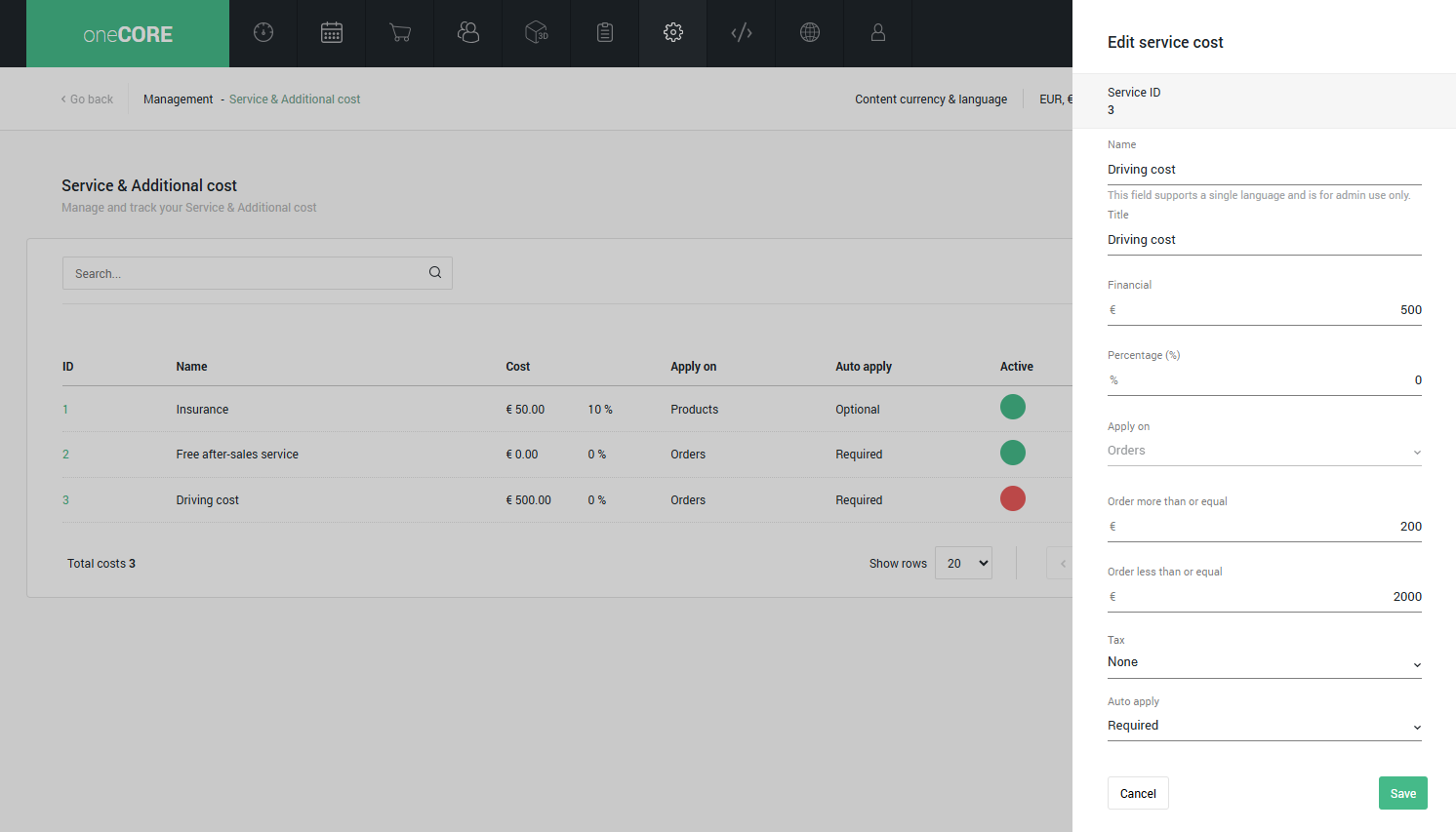
The settings and their conditions are provided below along with the example use cases.
1. Name*
This field supports a single language and is for admin use only.
2. Title
Cost title is intended for use on the live website.
3. Financial
This field is to enter the fixed cost amount. It supports multi-currencies, so the cost must be manually specified for each available currency. To switch currencies, use the currency switcher on the list page.
4. Percentage (%)
This field is to enter the flexible cost amount calculated from a percentage of product or
order price. The percentage cost is calculated based on the product or order price before discount.
When both financial and percentage cost are applied
If both financial and percentage cost have value, each cost will be calculated independently and then added together.
Example case
- Product A price (1,000 EUR) has both financial and percentage cost below:
o Financial cost: 150 EUR
o Percentage cost: 10%. The percentage cost is calculated based on the product price: 10% of 1,000 EUR = 100 EUR
Therefore, the total price that customer needs to pay for this product is 1,000 + 150 + 100 = 1,250 EUR
5. Apply to*
This field defines whether the cost applies to Products or Orders & Quotations. Once the cost is created, this setting cannot be changed.
- Products
When applied to products, the cost is calculated based on the product price.
Product customization
If the cost is created with Apply to “Product” condition, users can specify “Included products” and “Excluded products” to
customize a list of products to which the cost will be applied. Without further customization, the cost will apply to all products
by default.
- Orders & Quotations
This cost can apply to both orders and quotationn, supporting when creating orders and quotations, and when turning quotations into orders.
When applied to orders and quotations, the cost is calculated based on the total of orders and quotations.
Price specification
Users can specify the product price or order price range to which the cost will be applied. Users can configure the affected price range by entering “Price more than or equal to” and “Price less than or equal to”. Without further customization, the cost will apply to all prices by default.
The price specification supports multiple currencies, so the price range must be manually specified for each available currency. To switch currencies, use the currency switcher on the list page.
Example case
- Price more than or equal to 1,000 and Price less than or equal to 500
This cost applies to product or order prices up to 500 EUR and equal to or more than 1,000 EUR.
- Price more than or equal to 500 and Price less than or equal to 1,000
This cost applies to product or order prices between 500 and 1,000 EUR (inclusive 500 and 1,000 EUR).
When there are both Product and Order cost
If an order has both product and order cost, the order cost is calculated based on the product price only, excluding any product costs.
Example case
- An order contains 1 unit of Product A (1,000 EUR) that has a product cost of 250 EUR.
- This order has an order cost of 25%. The order cost is calculated based on the product price: 25% of 1,000 EUR = 250 EUR.
Therefore, the total price that customer needs to pay for this order is 1,000 + 250 + 250 = 1,500 EUR.
6. Tax
To specify the tax rate of the cost. The tax in cost also works with EuVatReverseCharge feature that deducts the VAT from orders.
7. Auto apply*
This field is to specify that this cost will automatically apply to products or orders. There are 2 options – “Optional” and “Required”.
- “Optional” cost will not automatically apply to products or orders by the system. Customers can decide whether to
add this cost to their products or orders. Each shop can design the behavior and display of the optional cost dynamically
based on your usage.
- “Required” cost will automatically apply to products or orders by the system.
8. Active*
To activate or deactivate a cost. The cost will be created with Active status by default. An inactive cost will not apply to products or orders.
*Required